We help creative foodies (like you!) take the guesswork out of building a food blog to share your passion and earn money doing what you love. Join the over 11,000 subscribers on our newsletter to get actionable tips and strategies delivered to your inbox each week! 📫
The Gear We Use For Recipe Videos in 2026
|
We're excited to send new Food Blogger Pro blog posts to you via email! We'll share our latest and greatest blog posts with you where we'll talk about tips and strategies for growing your audience, creating great food content, and monetizing your blog, as well as updates on new courses available for Food Blogger Pro members! The Gear We Use For Recipe Videos in 2026Published on October 1, 2026 When it comes to filming recipe videos, you really don’t need a complicated setup. These days, an iPhone, a tripod, and good lighting can get you surprisingly far, and that’s actually what a lot of food creators are using to create their content. Our very own Lindsay from Pinch of Yum has nearly 2 million followers on Instagram, and much of her video content is filmed on just her iPhone! Of course, there are plenty of reasons you might want to use a dedicated camera, and we’ll always be fans of good photography and video gear. But if you’re mainly creating content for Instagram, TikTok, YouTube Shorts, Pinterest, or other social platforms, you don’t need to spend thousands of dollars on a camera setup to get started.
So, what do we actually use to film recipe videos? Below, we’re sharing the gear that makes up our setup, from the phone we film with to the tripods, mounts, and lighting we use to make the process easier. And once you have a simple setup you love, you can start getting a lot more out of every shoot. By the way, that’s exactly what we’re digging into in an upcoming Food Blogger Pro course, so stay tuned! For now, let’s start with the gear. Here’s what we’ll cover:
This post contains affiliate links for products we love. Food Blogger Pro earns a small commission on these links at no cost to you, and the links will always be marked with an asterisk. The camera: your iPhone
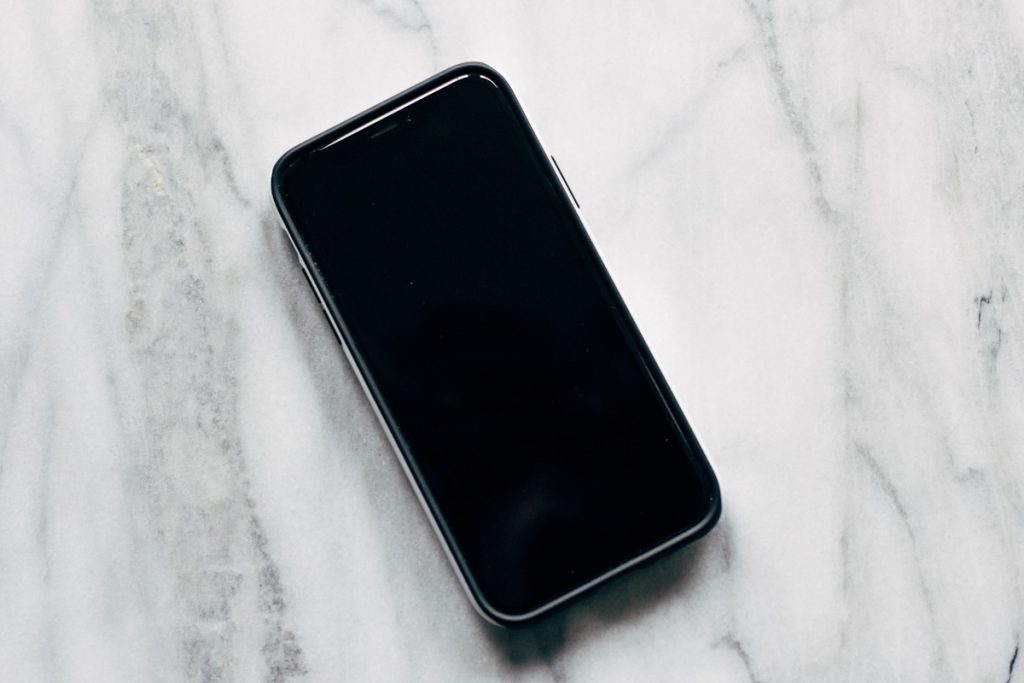
Any iPhone from the last few years can shoot great recipe videos. A Pro model mainly adds flexibility: more zoom options, higher frame rates for slow motion, and pro formats like ProRes and Log for color grading. iPhone Options
Settings that make the biggest difference
Camera apps worth trying
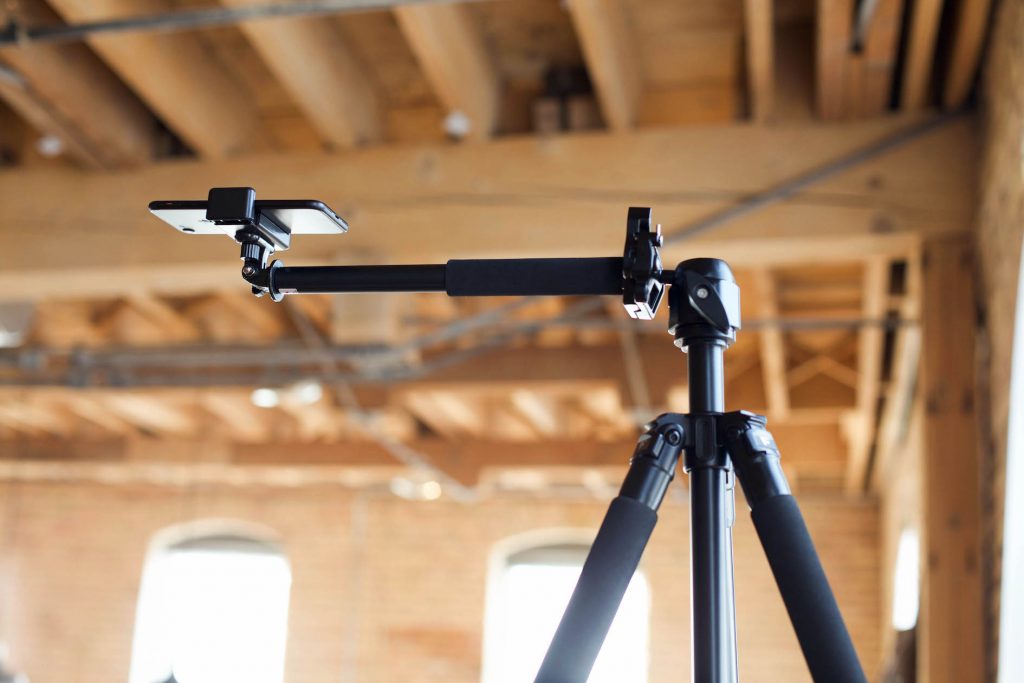
Stands, tripods, and overhead rigsA stable stand is the single biggest upgrade you can make to iPhone recipe videos. For most recipe content, you’ll want two setups: an overhead rig that looks straight down at your cutting board or pan, and a side-angle stand at counter height for pours, sizzles, and the final bite. The key for overhead shots is a horizontal arm that keeps tripod legs out of frame and holds the phone steady while you chop, whisk, and knead.
We really like using the Overhead Pro Tripod for iPhone videos. The nice thing about this tripod is that it has an arm. Since the camera is far away from the legs of the tripod, you’re not getting the legs in your shot. A smartphone is light enough that this very small tripod can support it, so it’s a great economical option. Overhead options
Side-angle and on-the-go options
Tips for any stand
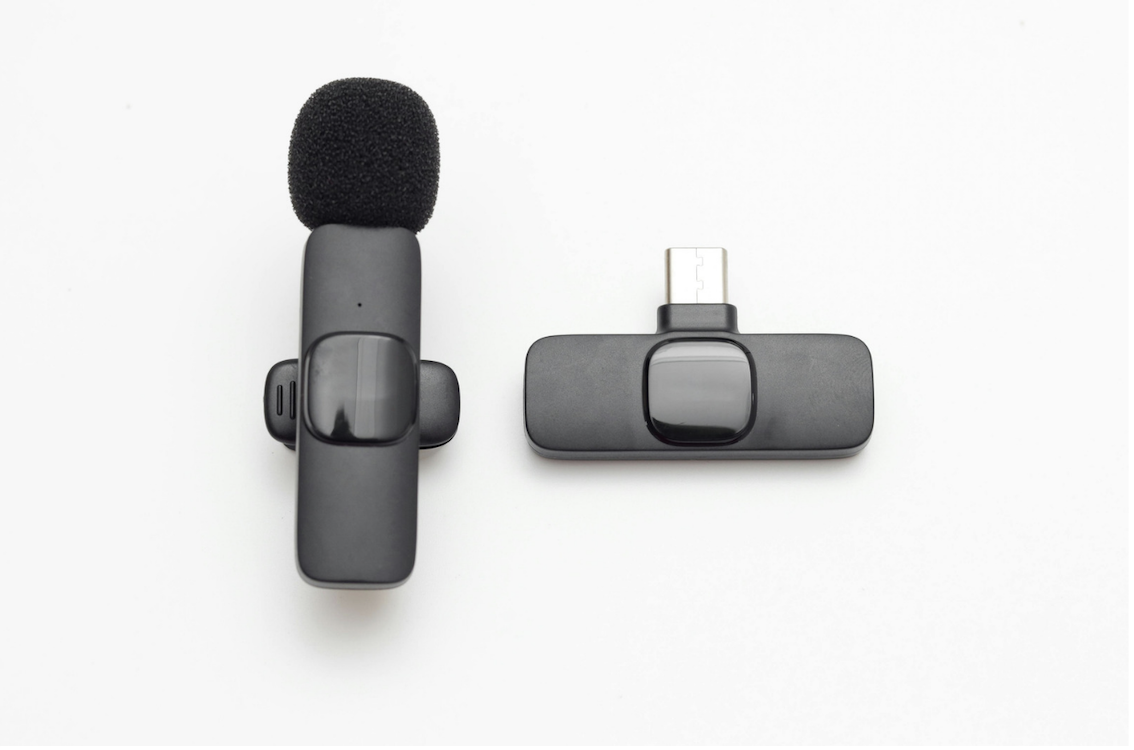
Audio: microphones for iPhoneIf you talk to the camera, a wireless clip-on mic is the most important thing you’ll buy after a stand. The iPhone’s built-in mics pick up the whole room: the fridge hum, the range hood, the echo off your tile backsplash. A mic clipped a few inches from your mouth fixes that instantly.
Today’s wireless mic kits plug straight into the iPhone’s USB-C port (older Lightning iPhones need the Lightning version or an adapter) and work with the built-in Camera app. No settings required. Wireless clip-on mics
Why two mics? Most kits come with two transmitters. That’s perfect for filming with a partner, or for clipping the second mic near the stove to capture the sizzle. Audio tips
LightingGood light matters even more on an iPhone than on a big camera. The iPhone’s small sensor gets noisy and muddy in dim kitchens, and it will happily shift color as clouds roll by. We still love natural light, but artificial light lets you film consistently any time of day, any season (a big deal for us here in Minnesota). Start with free (and almost free) light
Artificial light options
Want to learn more about artificial lighting? Editing Software for Recipe Videos
Want to learn more about editing? Check out our courses on editing in Final Cut Pro, Adobe Premiere Pro, CapCutand InShotcourses! Helpful extrasMonitoring: see your shot while you cookWhen your iPhone is four feet above the counter, you can’t see the screen. Here are a few ways to keep an eye on framing and focus:
Storage: video files are bigA few minutes of 4K ProRes can fill a 256GB iPhone in no time. On iPhone 15 Pro and newer, you can record ProRes directly to an external USB-C SSD. It needs to be exFAT-formatted and fast enough (at least 220 MB/s for 4K60, 440 MB/s for 4K120). Portable SSDs like the Samsung T7 Shield* and SanDisk Extreme* are popular choices. For everyday HEVC footage, iCloud Photos or Google Drive works well for backing up and sharing with your team. Gimbal: for moving shotsYou don’t need a gimbal for tabletop recipe videos, since a stand is steadier. But if you film farmers’ market trips, restaurant visits, or walk-and-talk videos, a gimbal like the DJI Osmo Mobile 8* ($159) smooths out every step. It also supports Apple DockKit for subject tracking in the iPhone Camera app. You don’t need the studio kit to make recipe videos people love. Some of the most-watched Reels we’ve ever posted were filmed on a phone. Start with your iPhone, a steady stand, and good window light. Add a mic when you start talking to the camera, and add lights when the seasons (or your schedule) start fighting you. Want to learn more about recipe video equipment and settings? Watch our Creating Vertical Short-Form Videoscourse! What about you? What’s in your recipe video kit right now? Is there a stand, mic, or app you can’t live without? We’d love to hear about it in the comments below. This blog post, The Gear We Use For Recipe Videos in 2026, originally appeared on Food Blogger Pro. |
Food Blogger Pro
We help creative foodies (like you!) take the guesswork out of building a food blog to share your passion and earn money doing what you love. Join the over 11,000 subscribers on our newsletter to get actionable tips and strategies delivered to your inbox each week! 📫
This episode is sponsored by Clariti. Welcome to episode 593 of The Food Blogger Pro Podcast! This week on the podcast, Bjork interviews Dahn Boquist from Savor the Best. Dahn Boquist left her nursing career to blog full-time with her mom at Savor the Best, and the flexibility that came with that leap has been the highlight. But the journey hasn’t always been a linear one. In this interview, Dahn walks Bjork through her site’s growth, decline, and recovery and shares what she learned and...
We're excited to send new Food Blogger Pro blog posts to you via email! We'll share our latest and greatest blog posts with you where we'll talk about tips and strategies for growing your audience, creating great food content, and monetizing your blog, as well as updates on new courses available for Food Blogger Pro members! New Course: How to Turn One Recipe into Content for Every Platform Published on October 15, 2026 Happy Thursday, Food Blogger Pro members! 🎉 We have a new course for you!...
This episode is sponsored by Clariti and Raptive. Welcome to episode 592 of The Food Blogger Pro Podcast! This week on the podcast, Bjork interviews Aaron Randhawa from The Forked Spoon. This week, Aaron Randhawa joins Bjork to explain the different processes behind The Forked Spoon, where Aaron manages technical operations so Jessica can focus on what she loves most: recipes, photography, and creative work! They’ll talk about how email infrastructure can play a huge role in protecting a...